
Build Using Free Cartesia Sonic 3 TTS All Week on Vapi

Build Using Free Cartesia Sonic 3 TTS All Week on Vapi
Cartesia just launched Sonic-3, and it's setting a new bar for TTS speed and quality. To get the most out of it, you'll want to experiment - testing different voices, adjusting emotion and speed controls, and hearing how it sounds in actual conversations. We think that kind of exploration should be friction-free.
That's why we've partnered with Cartesia to give the Vapi community a free full week to build with Sonic-3, via our managed API key.
With unrestricted access to Sonic-3 from October 28 through November 2, this is a chance to experience production-grade voices with industry-leading speed on our infrastructure without any cost constraints. Sonic-3 highlights include:
- Human-like expressivity with emotion and laughter tags
- Fine-grained control for speed and volume
- Multilingual capabilities with support for 27 new languages
Getting the Best Performance from Sonic-3 on Vapi
To help you get the most out of Sonic-3 this week, here are recommendations for configuring the model on Vapi's platform.
Voice Selection
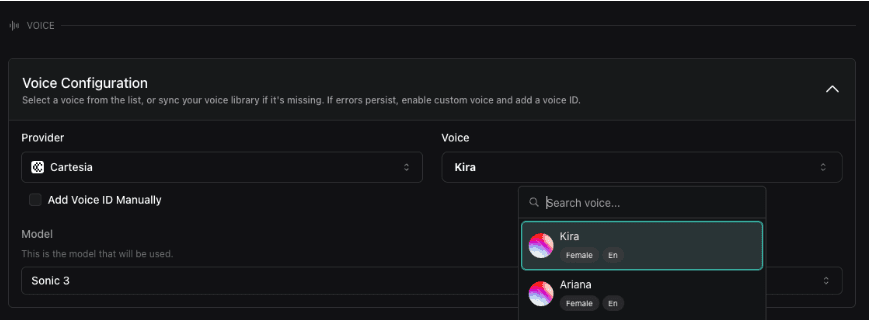
Sonic-3 introduces new voices optimized for ultra-low latency and natural expressiveness. We recommend starting with these two voices for the best results:
Kira (): Ideal for conversational agents requiring warm, engaging interactions with natural prosody.
57dcab65-68ac-45a6-8480-6c4c52ec1cd1
Ariana (): Best suited for professional use cases requiring clear, articulate delivery with consistent tone.
ec1e269e-9ca0-402f-8a18-58e0e022355a
You can select these voices directly from the Voice dropdown in your Vapi dashboard in the Assistants view, in the Voice section.
Step: Assistants view > Voice > Voice Configuration > Voice > Kira/Ariana
Emotion and Expressivity Controls
Sonic-3 supports emotion tags and laughter for more human-like conversations. These features work well for agents handling longer interactions where natural expressiveness improves user experience.
Step: Assistants view > Model > System prompt > include instructions to use [laughter] or
Speed and Volume Settings
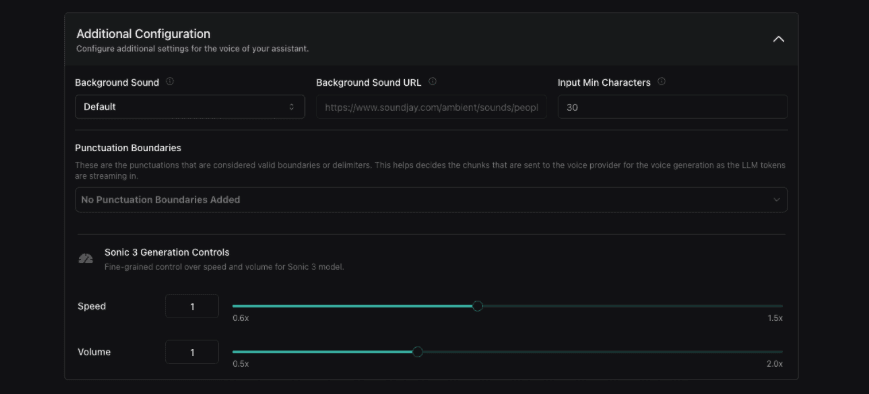
Sonic-3 allows fine-grained control over speech rate and volume. Adjusting these settings lets you match the agent's delivery to your specific use case without introducing latency.
Step: Assistants view > Voice > Additional configuration > Sonic 3 Generation Controls
Multilingual Support
Sonic-3 supports 27 languages with native pronunciation. While auto-detection works well for most cases, selecting a specific language improves accuracy for specialized vocabulary or accent requirements.
Step: Assistants view > Voice > Voice Configuration